
Client Portals
Client Portal Features Checklist: What Should Your Portal Actually Include?
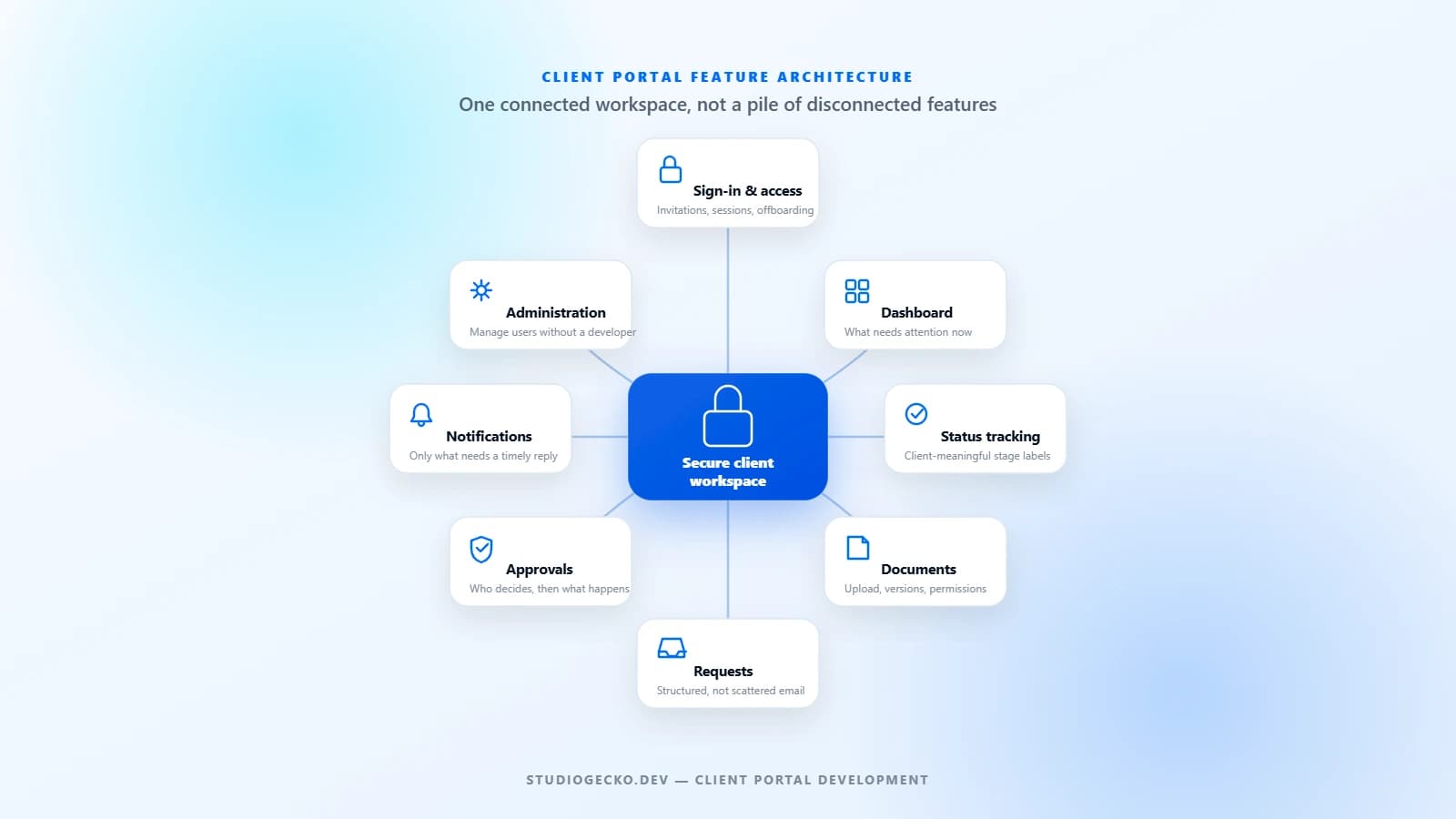
A useful client portal is not a collection of impressive features. It is a controlled workspace built around the real tasks clients and internal teams need to complete together.
Start with the workflow, not the feature list
A client portal is not a collection of impressive features. It is a controlled workspace built around the real tasks clients and internal teams need to complete together. The best portal is not the one with the most features. It is the one that makes the actual client workflow simpler.
Before choosing features, look at how work already moves between the business and its clients. The current process, however informal, already contains the requirements. The portal should organize that process, not invent a new one.
- What do clients repeatedly email us about?
- What information do they regularly ask for?
- What documents do we repeatedly request from clients?
- What documents do clients need from us?
- What status information do clients actually need?
- What approvals happen repeatedly?
- Which requests could be structured instead of freeform?
- Which actions require human review before they take effect?
- What information should remain internal?
- Which notifications are genuinely useful, and which would just create noise?
Authentication and account access
Authentication is foundational, but it should not be unnecessarily complex. A portal is not automatically secure simply because it requires a login. Access control depends on how the system enforces permissions after sign-in, not on the presence of a login screen.
- Secure sign-in with session handling appropriate to the sensitivity of the data.
- Account invitations so access is granted deliberately rather than through open signup.
- A clear account-creation flow for new clients and new team members within a client organization.
- Password reset and recovery that does not depend on a manual staff workaround.
- Session management, including expiration and behavior across devices.
- Support for multi-user client organizations where more than one person at a client needs access.
- A defined offboarding step for deactivating access when a relationship or employee ends.
Plan authentication around how many people at each client actually need access, not around a worst-case enterprise scenario that may never apply to the business.
Roles and permissions
Different users need access to different projects, documents, information, or actions. A portal typically separates client users, internal users, and administrators, but the right level of complexity depends entirely on the business.
- Client users: what they can view, upload, download, request, or approve.
- Internal users: what they can manage, assign, or review on behalf of clients.
- Administrators: who can manage other users, permissions, and system-wide settings.
- Read-only access for stakeholders who need visibility without the ability to act.
- Upload and download permissions, which may differ by document type or project stage.
- Approval permissions, since not every user who can view a document should be able to approve it.
- Project- or account-specific access, so a client only sees the work that belongs to them.
The client dashboard and home view
The home screen should answer one question for the client: what needs my attention right now. A useful dashboard might surface current status, open requests, pending approvals, recent activity, important documents, and next steps.
- Current status of active work or projects.
- Open requests that are waiting on the client or on the business.
- Pending approvals that need a decision.
- Recent activity relevant to the client's own account.
- Important documents that were recently shared or are still needed.
- A clear next step, rather than a wall of unrelated information.
Status tracking
Status tracking can cover project status, service-request status, application status, milestone progress, or approval state, depending on the business. What matters most is that status labels are meaningful to the client, not just accurate internally.
| Internal stage | Client-facing translation |
|---|---|
| Intake review | Received |
| Assigned to specialist | In progress |
| Internal QA | Final review |
| Awaiting third-party dependency | Waiting on an external step |
| Closed - won | Complete |
Internal operational stages should not always be exposed directly to external users. A client rarely needs to know which internal queue a request sits in. They need to know what is happening and, when relevant, what is expected of them next.
Document exchange
Document exchange becomes more valuable when it is connected to an actual workflow rather than functioning as a generic file dump. A folder of unlabeled files is not meaningfully better inside a portal than it was in an email thread.
- Uploads and downloads scoped to the correct client or project.
- Document categories so files are organized by purpose, not just by date.
- Version clarity when a document is revised more than once.
- Required-document indicators showing what the client still needs to provide.
- Missing-document indicators visible to internal staff managing the account.
- Access permissions that control who can view, replace, or delete a given file.
Structured requests
Structured requests can replace confusing email chains where the same information is asked for repeatedly. Support requests, service requests, change requests, document requests, project-update requests, and onboarding information are common candidates.
- Identify which requests happen often enough to justify a structured form.
- Capture only the fields that are actually needed to act on the request.
- Route each request type to the right internal owner automatically.
- Give the client a visible status once a request has been submitted.
- Leave room for a plain message when a request does not fit a form.
Not every interaction should become a form. Structured requests work well for repeated, well-defined asks. Nuanced conversations are often still better handled as a message or a call.
Messaging and communication
Portal messaging creates useful context when it keeps a conversation attached to the right project, document, or request. It adds less value when it simply duplicates a normal email inbox that already works fine.
- Portal messages or comment threads tied to a specific project or request.
- A visible communication history so context is not lost between conversations.
- Email fallback so a client is not required to log in just to see a reply.
- Notifications that tell the client a new message is waiting.
Not every portal needs custom real-time chat. For many businesses, threaded messages tied to a request or project, with an email notification, are simpler to build and easier for clients to use than a live chat feature.
Approval workflows
Approval workflows can apply to documents, designs, deliverables, quotes, requests, or milestones. Before building one, define exactly what is being approved and by whom.
- What is actually being approved, in specific terms?
- Who is authorized to approve it, and can that authority be delegated?
- What happens after a rejection: revision, escalation, or a new submission?
- Are comments required when something is rejected?
- Can an approval be reversed, and under what circumstances?
- Is a visible approval history useful to the client, the business, or both?
Notifications
The key question for notifications is simple: what does the client actually need to know immediately, versus what can wait for their next visit to the portal. Email, in-app notifications, and occasionally SMS are the common channels.
- Email notifications for events that need timely attention.
- In-app notifications for lower-urgency updates.
- SMS only where the urgency and cost genuinely justify it.
- Notification preferences so clients can control what they receive.
- Batching related events instead of sending a separate alert for every minor change.
Account and profile settings
Account settings should cover what a client genuinely needs to manage, not every configuration option that could theoretically exist.
- Contact information for the client and their organization.
- Organization details when the client account represents a company rather than an individual.
- Team member management for multi-user client accounts.
- Notification preferences.
- Password and basic security settings.
Do not expose unnecessary configuration simply to make the portal feel more complete. Every setting is something a client can misconfigure and a support conversation the business may need to handle later.
Billing and payments (optional)
Billing and payments should be treated as optional, not assumed. An existing payment provider or accounting system may remain the source of truth, with the portal simply reflecting status.
- Invoices, either generated in the portal or pulled from an existing system.
- Payment status, showing what is paid, pending, or overdue.
- Payment links that connect to an existing, properly configured payment provider.
- Subscription or plan details, where relevant.
Not every portal should become a billing system. If an existing invoicing or payment platform already works well, connecting to it as the source of truth is usually simpler and safer than rebuilding billing logic inside the portal.
How the portal relates to your CRM or back office
The client portal is the external-facing workspace. The CRM or back-office system is the internal operational system. They may share underlying information, but they serve different users and different purposes, and confusing the two usually leads to a bloated, unfocused build.
| Internal team (CRM) | Client (portal) |
|---|---|
| Records | Status |
| Assignments | Documents |
| Workflow stages | Requests |
| Internal notes | Approvals |
| Reporting | Communication |
A portal that tries to also function as the internal operating system, or a CRM that tries to also serve as the client-facing interface, tends to satisfy neither audience well. Keep the internal system focused on managing the work, and the portal focused on the client's view of that work. For a deeper look at the internal side of this relationship, see the CRM requirements checklist.
Automation that supports the workflow
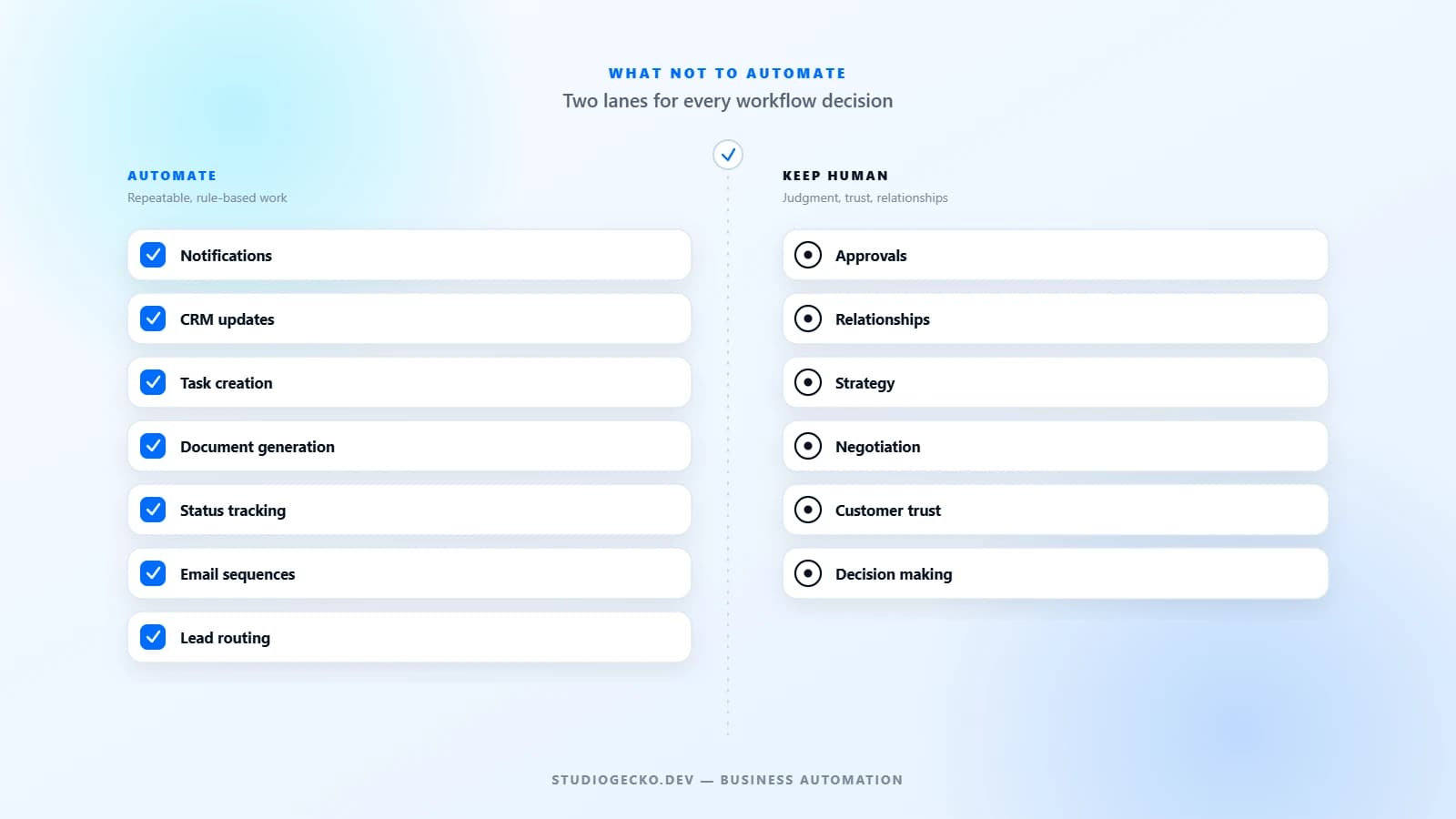
Portal-related automation should support the workflow, not remove necessary human judgment. It works best when it handles predictable, repetitive steps and leaves decisions that require context to a person.
- Status notifications sent automatically when a stage changes.
- Document reminders when something required is still missing.
- Approval reminders when a decision has been pending too long.
- Internal task creation when a client submits a structured request.
- Internal handoffs so the right person is notified without a manual forward.
- Follow-up notifications after a milestone or deliverable is completed.
Automation should reduce repetitive coordination work, not replace the judgment calls that still need a person behind them.
Admin controls
Decide which settings an administrator should be able to change without developer involvement, and which changes genuinely require development or design review.
- Manage users, including inviting, editing, and removing access.
- Resend invitations for accounts that have not activated.
- Suspend or restore access without deleting historical data.
- Update permissions as a client's needs or team changes.
- Manage documents or content visible to clients.
- Control the status labels or stages clients see.
- Review important account activity.
Administration should focus on the changes a business expects to make repeatedly. Trying to make every possible setting configurable usually creates more complexity than it removes.
Search, filtering, and activity history
Search and filtering become useful once users are dealing with many documents, many projects, many requests, or a long history. They are not worth adding simply because they sound sophisticated for a portal with a handful of items per client.
- Search across documents, requests, or projects once volume justifies it.
- Filtering by status, date, or category for accounts with meaningful history.
- A visible activity history of status changes, approvals, uploads, and other important actions.
- Enough context in the activity history to reduce confusion about who changed what and when.
Visibility into recent activity does not require enterprise-level audit infrastructure. A simple, readable activity log is usually sufficient for the first version of a portal.
Mobile usability and accessibility
Clients will use a portal from their phones, often to check a status or approve something quickly between other tasks. A responsive layout, touch-friendly targets, working uploads, and clear approval actions matter more than a native mobile app for most businesses.
- Responsive layout that works cleanly on common phone and tablet sizes.
- Touch targets sized appropriately for uploads, approvals, and navigation.
- Status information that stays readable on smaller screens.
- Keyboard access and visible focus states for users who do not rely on a mouse.
- Readable contrast, clear labels, and understandable error messages.
A portal does not require a native mobile application to be usable on mobile. It also does not require, or automatically receive, a guaranteed accessibility certification simply because these practices are followed. Accessibility is an ongoing practice, not a one-time checkbox.
What not to put in version one
Build the smallest portal that meaningfully improves the client workflow. Several categories of feature are easy to justify in the abstract and rarely earn their place in a first release.
- Advanced analytics without a specific decision they are meant to support.
- Custom real-time chat when email or threaded messages already work.
- Complex permission tiers when the business only has two real user types.
- Gamification that has no connection to the actual client workflow.
- A native mobile app without a demonstrated need beyond a responsive web portal.
- Excessive customization options that mostly go unused.
- Features copied from a competitor's portal without a clear workflow reason.
Each of these can be a reasonable addition later, once real usage shows it is worth the cost. None of them are a substitute for getting the core workflow right first.
Prioritize with core, important, optional, and later
| Priority | Meaning |
|---|---|
| Core | Required for the client to complete the primary workflow. |
| Important | Meaningfully improves the experience but can potentially follow launch. |
| Optional | A useful enhancement without a strong argument for launch. |
| Later | A future idea that needs real usage evidence before it earns a place in scope. |
Sort every feature under consideration into one of these four categories before development begins. A portal that ships only its Core and a few well-chosen Important items usually serves clients better than one that tries to launch everything at once. If the scope is still unclear at this stage, the Solution Planner can help organize the broader system requirements before committing to a build.
The final client portal features checklist
Copy these categories into a planning document and work through them with the people who manage client work day to day.
| Category | Plan this |
|---|---|
| Authentication | Sign-in, invitations, account creation, password reset, session handling, offboarding. |
| Roles | Client, internal, and administrator access, and whether more granular roles are truly needed. |
| Dashboard | What needs attention right now, without decorative charts or fabricated metrics. |
| Status | Client-meaningful labels, mapped from internal stages where necessary. |
| Documents | Upload, download, categories, version clarity, required and missing indicators. |
| Requests | Which repeated asks justify a structured form versus a plain message. |
| Messaging | Threaded context, communication history, and email fallback. |
| Approvals | What is approved, who approves it, rejection handling, and history. |
| Notifications | Channel, urgency, batching, and client preferences. |
| Account settings | Contact info, team members, notification preferences, security. |
| Billing | Whether the portal needs billing at all, or should defer to an existing system. |
| Integrations | Which existing tools remain the source of truth for shared data. |
| Admin | What an administrator can change without developer involvement. |
| Search and activity | Whether volume justifies search, filtering, and a visible activity history. |
| Mobile | Responsive layout, touch targets, and readable status on phones. |
| Accessibility | Keyboard access, focus states, contrast, and clear error messages. |
When these answers are clear, the result is not necessarily a large system. It is a portal scoped around what your clients and your team actually need to get work done together, with everything else deliberately left for later.
Article FAQ
What is the minimum viable client portal?
A minimum viable client portal usually needs secure sign-in, two roles (client and internal), a simple status view, document exchange, and one structured request type. Most other features can wait until real usage shows they are needed.
Should a client portal replace our CRM?
No. A client portal is the external-facing workspace, while a CRM or back-office system manages internal records, assignments, and reporting. They can share information, but they serve different users and different purposes.
How do we decide what belongs in version one of a portal?
Sort every proposed feature into core, important, optional, or later based on whether it is required for the primary client workflow. Launch with core and a small set of important features, then add the rest once usage justifies it.
Related services, industries, and examples
Continue with the commercial pages that connect this article to actual website, automation, portal, and maintenance decisions.

Written by
About the author
Yhorman Ibarra
Founder & Lead Developer
Yhorman Ibarra is the Founder & Lead Developer of studiogecko.dev, a digital product studio specializing in conversion-focused websites, custom SaaS platforms, CRM systems, and business automation. With more than 10 years of experience, over 100 websites built, and seven SaaS tools developed across multiple industries, he focuses on creating digital products that help businesses grow, not just look good.
Next step
Turn this checklist into a scoped client portal.
If your team already knows clients need a portal, discuss custom client portal development built around your real workflow. If scope is still uncertain, start with the Solution Planner instead.
Discuss Client Portal DevelopmentRelated articles
All articles
Client Portals
client portal development
What Is a Client Portal and When Does a Business Need One?
A client portal gives clients one organized place for requests, files, approvals, updates, invoices, and communication. It becomes useful when email and shared folders stop scaling.
CRM Development
CRM requirements checklist
CRM Requirements Checklist Before You Build or Configure
A useful CRM plan starts with the people, records, decisions, and handoffs the system must support, not a generic list of features.
Business Automation
what not to automate in your business
What Not To Automate In Your Business
Automation is powerful, but bad automation is expensive. The goal is not to automate everything. It is to automate the right work and keep the right work human.